Hello Pandas
12 Aug, 2026•4 min read
Introduction
Pandas is an open source library written for Python. Its commonly used for data manipulation and analysis. In this series we are going to look at some basic methods to get started with Exploratory Data Analysis with Pandas.
This is going to be a multi-part series starting with, following four articles
-
How to open data files using Pandas?
-
How to read data using Pandas? - TBD
-
How to identify bad data using Pandas? - TBD
-
How to clean data using Pandas? - TBD
This article assumes you have basic knowledge of Python and have a working dev environment setup.
We are going to use The Office data set from Kaggle as an example. I've converted CSV to other formats to cover different scenarios. All the data files using in this blog are here and the Jupyter Notebook is here.
Reading files
The first step into any Exploratory Data Analysis is to read data into the memory. This can be done by querying databases, making server requests and most commonly by reading data files. We going to cover reading csv, tsv, json and excel files.
Read CSV file
Reading CSV files is the easiest we can just use the read_csv method.
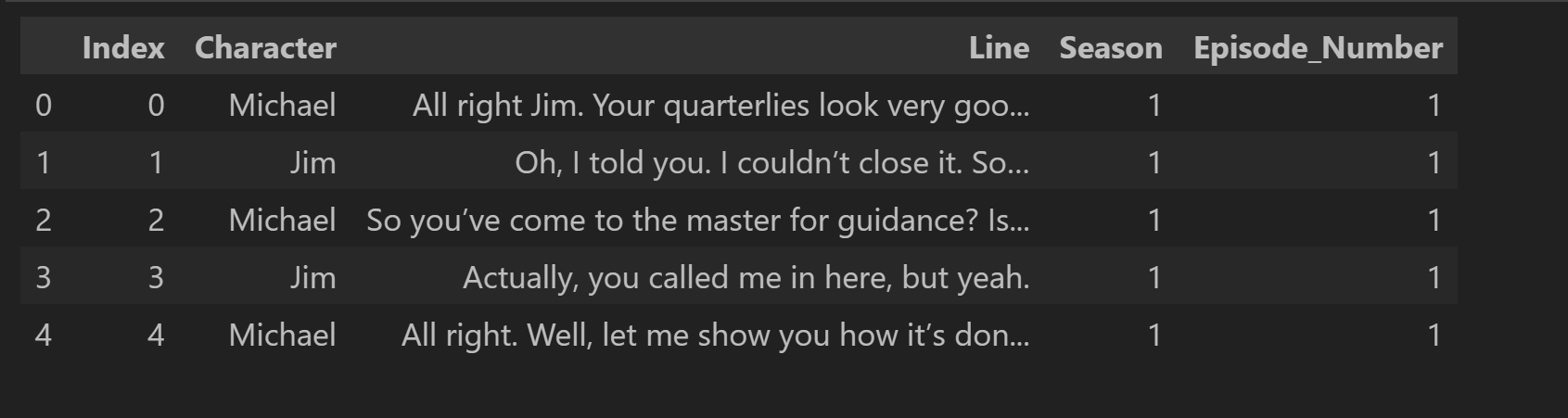
## read CSV file
df = pd.read_csv('./data/the_office/the_office_lines.csv')
## print the first 5 rows of the dataframe
df.head()
Read CSV file with different encoding
We can pass encoding parameter to open files with different encodings. Standard encodings supported by Python can be found here
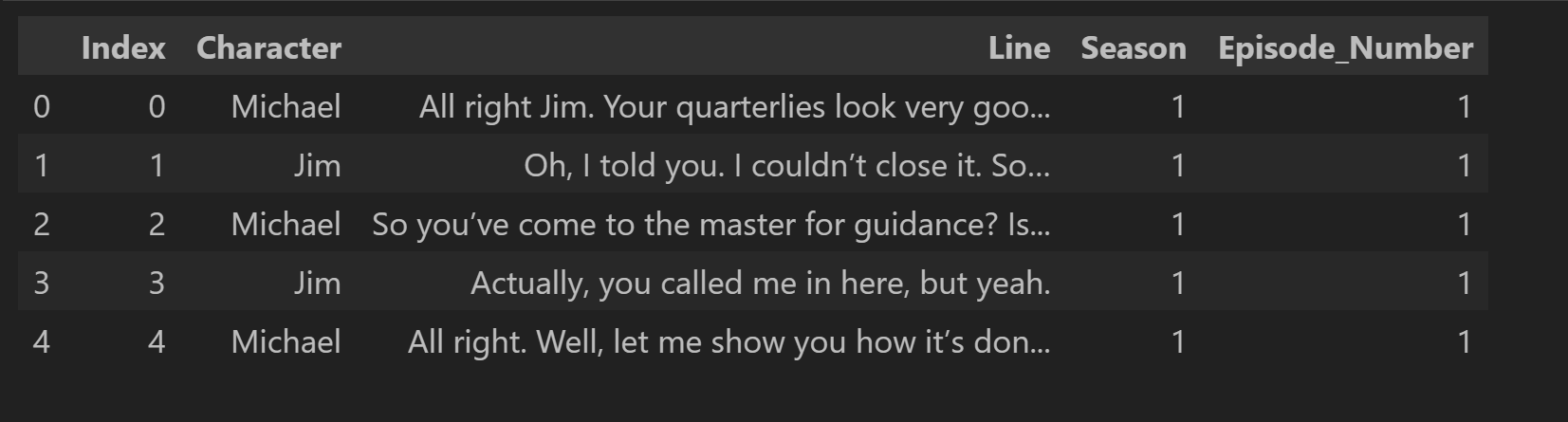
## read CSV with encoding
df = pd.read_csv('./data/the_office/the_office_lines.csv', encoding='utf-8')
## print the first 5 rows of the dataframe
df.head()

Reading different row as column header
By default first row is treated as column header or column names for the data frame. We can change that by passing the header parameter.
## read CSV with different header

df = pd.read_csv('./data/the_office/the_office_lines.csv', header=1)
## print the first 5 rows of the dataframe
df.head()

Reading CSV with custom column headers
We can also ignore headers in the csv file and give our own custom column names by passing names parameter to the function. Be sure to add header=0 if csv file has an header, else header will be included as a row
## read CSV with custom header

df = pd.read_csv('./data/the_office/the_office_lines.csv',
        names=["col1" , "col2", "col3", "col4", "col5"],
        header=0)
## print the first 5 rows of the dataframe
df.head()

Reading CSV file index
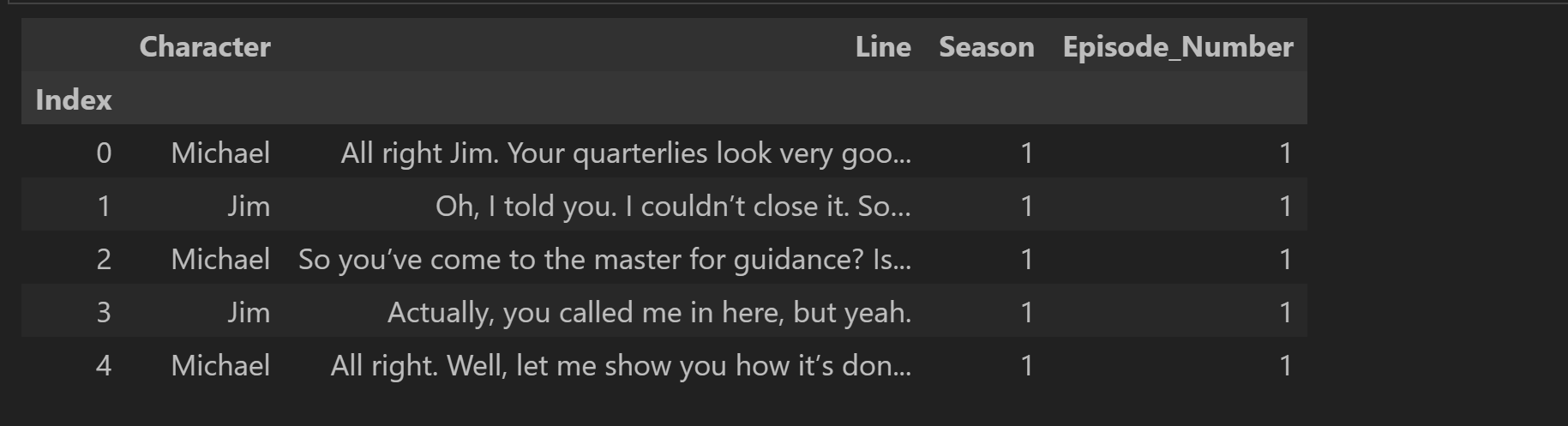
As you can see from our data snapshot, our csv file comes with an index. We can pass index_col parameter to use that column as index instead of the on that Pandas adds.
## read CSV with index column
df = pd.read_csv('./data/the_office/the_office_lines.csv', index_col=0)
## print the first 5 rows of the dataframe
df.head()
Reading TSV (Tab Separated Values) file
Read TSV File
Data files comes in all shapes and sizes and so sometimes we might need to open tsv files. We can read tsv files using the same read_csv method but passing a different delimiter param.
## read TSV File
df = pd.read_csv('./data/the_office/the_office_lines.tsv', delimiter='\t')
## print the first 5 rows of the dataframe
df.head()

The delimiter parameter is just an alias for sep parameter, so read_csv can be called with sep parameter and results are the same.
## read TSV File with sep parameter
df = pd.read_csv('./data/the_office/the_office_lines.tsv', sep='\t')
## print the first 5 rows of the dataframe
df.head()

Since we are using the same method to read tsv file, all the above parameters are supported for tsv files too. You can read more about read_csv and supported parameters here.
Reading JSON file
Read JSON file
Similar to read_csv pandas provides another simple method to read json file. Intuitively its called read_json
## read JSON File
df = pd.read_json('./data/the_office/the_office_lines.json')
## print the first 5 rows of the dataframe
df.head()

read_json also supports multiple parameters to orient the input based on json format, auto convert columns and read files with different encoding. All the supported parameters can be found here
Reading Excel file
Read Excel file
Similar to read_csv and read_json pandas also support read_excel helper method.
## read Excel File
df = pd.read_excel('./data/the_office/the_office_lines.xlsx')
## print the first 5 rows of the dataframe
df.head()